PerkUp's Swag Shipping: What's New

PerkUp's Swag Shipping: What's New

PerkUp's Swag Shipping: What's New

Product Updates

Product Updates

Product Updates

PerkUp's Swag Shipping: What's New

PerkUp's Swag Shipping: What's New

PerkUp's Swag Shipping: What's New

In this product update, we discuss the new shipping options and better visibility for event swag and inventory.

In this product update, we discuss the new shipping options and better visibility for event swag and inventory.

In this product update, we discuss the new shipping options and better visibility for event swag and inventory.

Last Update:

LastUpdate:

Last Update:

4

4

min read

min read

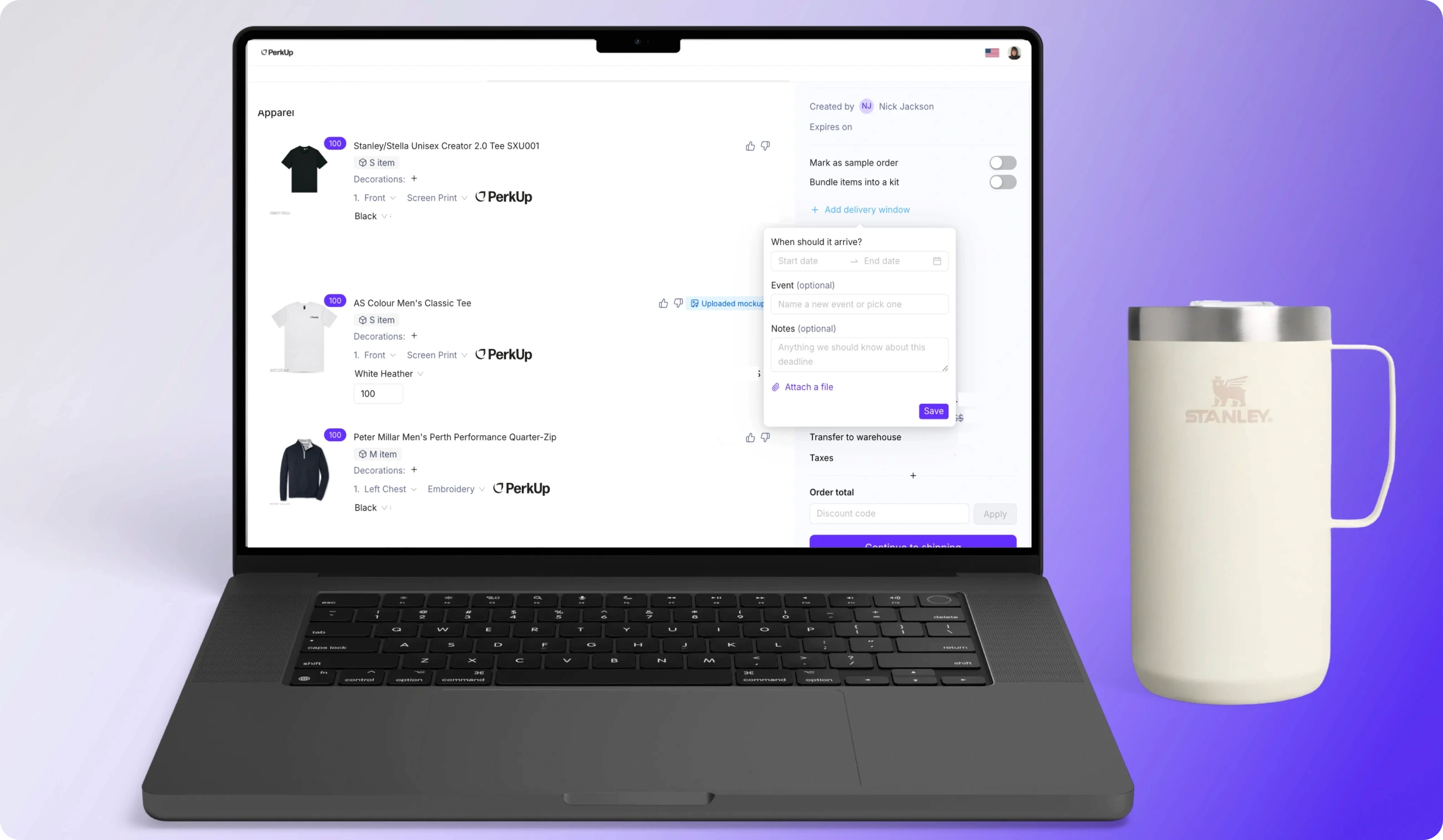
A laptop showing PerkUp's app interface, with an insulated tumbler on the side.
In this Post

Picture this: your conference is on the 28th. The swag order went in two weeks ago. Then someone on the field team asks the question that matters most: Is it actually going to be there?

So, what you do is check the order. It says “in production.” You email your rep and get back “5 to 7 business days after production.” So now you’re doing the math yourself, adding a buffer, telling the team it should arrive sometime the week before the event, and checking local printers just in case. The problem here is simple: there’s no actual date to plan around.

That’s what we fixed this month! PerkUp now shows a real arrival date throughout the order flow, from the product page all the way through tracking. And when a US order needs to move faster, you can choose expedited shipping right at checkout.

We went after the rest of that back-and-forth, too. You can now move the swag you already own into a PerkUp warehouse, manage more permissions yourself, and get answers directly in the app instead of emailing our team.

That said, here’s everything that changed recently in full detail, and how they fit into the way swag shipping works in PerkUp.


What are the changes in PerkUp’s swag shipping and delivery

There are three changes that are all about giving you an actual date to plan around.

  1. Pick your shipping speed at checkout

US orders now have three shipping speeds at checkout: Standard, Express, and Priority. Standard works the same way it does today. Express gets you 2-day shipping, and Priority gets you next-day shipping. You choose the speed on the order itself, and the upcharge shows right there at checkout. If you stick with Standard, nothing changes.

Do note, though, that every item in the order has to be prepaid swag already warehoused with PerkUp in the US. If the order qualifies, the faster options appear. 

  1. See the arrival date before you order

We also replaced ranges like “7 to 12 business days” with an actual delivery date. You’ll see it before you order on the product page, then again while creating the order, at reward acceptance, at checkout, in the confirmation email, and even in tracking. This way, you don’t have to work backward from a production estimate or add your own buffer.  The date accounts for the order cutoff, production time, transit time, weekends, and US holidays, too. 

So, if anyone asks whether the swag will arrive before your company’s event, you already have a date to give them.

  1. Check the status of your event swag

For events, one delivery date usually isn’t enough. You might have five orders going to three locations, all with different deadlines. That said, every event page now pulls that into one view at the top. You’ll see On track, Needs attention, At risk, or Delivered, plus the reason behind the status, the number of units it covers, and expandable details for each location.

We also added the planning around that delivery status:

  • The event lifecycle updates automatically - Events move through planning, confirmed, active, completed, and closed based on their dates, so nobody has to keep changing the status manually.

  • The calendar tells you when to order - The team-wide calendar shows event dates, delivery windows, and the order-by deadline for each event. You can plan backward from when the swag needs to arrive, rather than just staring at the conference date.

  • Venue receiving details stay with the location - Add direct-to-hall or advance warehouse instructions, receiving hours, and install and dismantle windows where your team can actually find them.

  • You can track the event itself, not just the swag - Classify it as field, corporate, partner, internal, or community, and add sponsorship spend as its own budget line.

  • Adding swag takes fewer clicks - The item drawer stays open while you add items, marks what you’ve already added, and lets you select everything in the Not Ordered section at once.

Together, these updates give you the date before you order and a way to speed up eligible shipments.



More Self-Serve Tools

We know that not every delay is due to shipping. Sometimes it’s the smaller admin work around it. Let’s say, for example, you’ve got leftover swag from an event that needs to go back into storage. Or someone in marketing needs permission to send a gift card. Or a new admin opens a page they’ve never used before and doesn’t know what to do next.

None of that should turn into an email thread. So this month, we made them simpler for you. Here’s how:

Send your leftover event to PerkUp’s warehouses

If you have swag remaining from a past event, you can now send it to a PerkUp warehouse yourself. To do this, you can simply go to the Receivings tab under Swag and click Send to warehouse. From there, you can create new swag items, link the shipment to products already in PerkUp, or upload a CSV for a larger shipment. The request stays visible in PerkUp as it moves through Submitted, Approved, and Delivered. When the carrier confirms delivery, the status updates there, too!

Once our team approves the request, we’ll email you the warehouse address, reference code, and next steps. You can also download a shipment slip for each package, add or replace tracking later, and leave unit pricing blank when you don’t know the original value. We added categories for the things warehouses actually receive, too, including pallets, cartons, pelican cases, and assorted boxes.

And if the swag is coming back from an event, you can start the return from the event page so the shipment stays tied to the event it came from.

Choose who can still send gift cards

If your team keeps gift cards turned off, you can now give specific roles permission to send them without switching gift cards back on for everyone. To do this, go to Settings → Preferences, turn gift cards off, and the role controls appear underneath. Pick who should keep sending access and leave everyone else off.

Find the answer on the page

We also added short guides to 41 admin pages across Events, Swag, Redemption, and Integrations. To access this, just look for Learn more under the page title.

They’re there for the questions that usually come up when someone joins your team or uses a feature for the first time. Instead of stopping to ask where something lives or what to do next, they can get the answer on the page and keep going.


Why Use PerkUp for Swag Campaigns

The hard part of swag campaigns starts after you place the order, because you still have to know where the inventory is, when each shipment should arrive, which warehouse should send it, what happens if an event date moves, and whether someone overseas is about to get a customs bill. PerkUp keeps that whole process in one place and makes it easier for you and your team.

For one, you can place your main swag order through bulk swag, use On Demand for a late addition, keep extra inventory for new hire kits, and let employees order through a swag store. You can run all of those sends from the same account instead of building a different process for each one.

For inventory and sourcing, PerkUp has warehouses and suppliers across the US, Canada, Mexico, the UK, Europe, India, China, Hong Kong, and Australia, with delivery to 65+ countries. When inventory is already close to your recipient, you get shorter shipping routes and fewer cross-border issues. That warehouse setup also makes the new delivery dates possible. If a product is already in a PerkUp US warehouse, we know the production work is complete and can provide a much tighter shipping window. That’s why expedited shipping only appears when every item in the order already sits there. For shipments that do cross a border, PerkUp handles shipping and customs, with duties prepaid wherever possible and eligible unexpected customs charges reimbursed.

Events add another layer because the delivery date must align with a hard deadline. That said, the event swag side of PerkUp now brings the shipment status, venue receiving details, delivery windows, and order-by dates together on the event itself. You can see a problem while there’s still time to do something about it, instead of finding out when the venue calls.

In addition to those, PerkUp also connects with 200+ integrations, so a new hire start date or work anniversary can trigger a send from the HRIS record your team already maintains. An automated milestone gift gets the same delivery visibility as an order an admin places manually. And if nothing in the catalog fits your swag campaign, PerkUp’s custom sourcing feature allows you to build the product from scratch, while PerkUp's in-house design team handles branding and mockups to keep your branding consistent across your programs.

The easiest way to see whether the setup works for your campaigns is to put a real order through it. Bring your goal, recipient locations, and the date you need everything delivered. Book a demo, and we’ll walk through the program with you.


Frequently Asked Questions About Swag Shipping

How long does expedited shipping take?

For eligible US orders with PerkUp, Express uses 2-day shipping and Priority uses next-day shipping. The delivery date you see already accounts for the order cutoff, production time, transit time, weekends, and US holidays. So instead of seeing “2-day shipping” and doing the calendar math yourself, you see the date the order should arrive.

Can employees choose faster shipping on their own orders?

Yes, if an admin gives them access. Admins always see the expedited options on eligible orders. Member and recipient checkouts only show them when you turn the setting on for your team, and that setting starts off by default. The faster shipping charge gets added to the order at checkout.

Can I store my own swag in a PerkUp warehouse?

Yes. Go to the Receivings tab under Swag and choose Send to warehouse. You can add products individually or upload a CSV for a larger shipment, then follow the request through Submitted, Approved, and Delivered. Add tracking when you have it, update it later if needed, and download shipment slips with the reference code for each package.

If the inventory comes back from an event, you can also start the return from the event page and keep it connected to that event.

How do I know if my event swag will arrive in time?

Open the event page. From there, you’ll see On track, Needs attention, At risk, or Delivered, along with the reason and a breakdown for each location. That way, if one shipment starts falling behind, you can see exactly which location needs attention. The event calendar also gives you an order-by date before you buy, so you know when to place the order instead of working backward from the conference date yourself.

Picture this: your conference is on the 28th. The swag order went in two weeks ago. Then someone on the field team asks the question that matters most: Is it actually going to be there?

So, what you do is check the order. It says “in production.” You email your rep and get back “5 to 7 business days after production.” So now you’re doing the math yourself, adding a buffer, telling the team it should arrive sometime the week before the event, and checking local printers just in case. The problem here is simple: there’s no actual date to plan around.

That’s what we fixed this month! PerkUp now shows a real arrival date throughout the order flow, from the product page all the way through tracking. And when a US order needs to move faster, you can choose expedited shipping right at checkout.

We went after the rest of that back-and-forth, too. You can now move the swag you already own into a PerkUp warehouse, manage more permissions yourself, and get answers directly in the app instead of emailing our team.

That said, here’s everything that changed recently in full detail, and how they fit into the way swag shipping works in PerkUp.


What are the changes in PerkUp’s swag shipping and delivery

There are three changes that are all about giving you an actual date to plan around.

  1. Pick your shipping speed at checkout

US orders now have three shipping speeds at checkout: Standard, Express, and Priority. Standard works the same way it does today. Express gets you 2-day shipping, and Priority gets you next-day shipping. You choose the speed on the order itself, and the upcharge shows right there at checkout. If you stick with Standard, nothing changes.

Do note, though, that every item in the order has to be prepaid swag already warehoused with PerkUp in the US. If the order qualifies, the faster options appear. 

  1. See the arrival date before you order

We also replaced ranges like “7 to 12 business days” with an actual delivery date. You’ll see it before you order on the product page, then again while creating the order, at reward acceptance, at checkout, in the confirmation email, and even in tracking. This way, you don’t have to work backward from a production estimate or add your own buffer.  The date accounts for the order cutoff, production time, transit time, weekends, and US holidays, too. 

So, if anyone asks whether the swag will arrive before your company’s event, you already have a date to give them.

  1. Check the status of your event swag

For events, one delivery date usually isn’t enough. You might have five orders going to three locations, all with different deadlines. That said, every event page now pulls that into one view at the top. You’ll see On track, Needs attention, At risk, or Delivered, plus the reason behind the status, the number of units it covers, and expandable details for each location.

We also added the planning around that delivery status:

  • The event lifecycle updates automatically - Events move through planning, confirmed, active, completed, and closed based on their dates, so nobody has to keep changing the status manually.

  • The calendar tells you when to order - The team-wide calendar shows event dates, delivery windows, and the order-by deadline for each event. You can plan backward from when the swag needs to arrive, rather than just staring at the conference date.

  • Venue receiving details stay with the location - Add direct-to-hall or advance warehouse instructions, receiving hours, and install and dismantle windows where your team can actually find them.

  • You can track the event itself, not just the swag - Classify it as field, corporate, partner, internal, or community, and add sponsorship spend as its own budget line.

  • Adding swag takes fewer clicks - The item drawer stays open while you add items, marks what you’ve already added, and lets you select everything in the Not Ordered section at once.

Together, these updates give you the date before you order and a way to speed up eligible shipments.


More Self-Serve Tools

We know that not every delay is due to shipping. Sometimes it’s the smaller admin work around it. Let’s say, for example, you’ve got leftover swag from an event that needs to go back into storage. Or someone in marketing needs permission to send a gift card. Or a new admin opens a page they’ve never used before and doesn’t know what to do next.

None of that should turn into an email thread. So this month, we made them simpler for you. Here’s how:

Send your leftover event to PerkUp’s warehouses

If you have swag remaining from a past event, you can now send it to a PerkUp warehouse yourself. To do this, you can simply go to the Receivings tab under Swag and click Send to warehouse. From there, you can create new swag items, link the shipment to products already in PerkUp, or upload a CSV for a larger shipment. The request stays visible in PerkUp as it moves through Submitted, Approved, and Delivered. When the carrier confirms delivery, the status updates there, too!

Once our team approves the request, we’ll email you the warehouse address, reference code, and next steps. You can also download a shipment slip for each package, add or replace tracking later, and leave unit pricing blank when you don’t know the original value. We added categories for the things warehouses actually receive, too, including pallets, cartons, pelican cases, and assorted boxes.

And if the swag is coming back from an event, you can start the return from the event page so the shipment stays tied to the event it came from.

Choose who can still send gift cards

If your team keeps gift cards turned off, you can now give specific roles permission to send them without switching gift cards back on for everyone. To do this, go to Settings → Preferences, turn gift cards off, and the role controls appear underneath. Pick who should keep sending access and leave everyone else off.

Find the answer on the page

We also added short guides to 41 admin pages across Events, Swag, Redemption, and Integrations. To access this, just look for Learn more under the page title.

They’re there for the questions that usually come up when someone joins your team or uses a feature for the first time. Instead of stopping to ask where something lives or what to do next, they can get the answer on the page and keep going.


Why Use PerkUp for Swag Campaigns

The hard part of swag campaigns starts after you place the order, because you still have to know where the inventory is, when each shipment should arrive, which warehouse should send it, what happens if an event date moves, and whether someone overseas is about to get a customs bill. PerkUp keeps that whole process in one place and makes it easier for you and your team.

For one, you can place your main swag order through bulk swag, use On Demand for a late addition, keep extra inventory for new hire kits, and let employees order through a swag store. You can run all of those sends from the same account instead of building a different process for each one.

For inventory and sourcing, PerkUp has warehouses and suppliers across the US, Canada, Mexico, the UK, Europe, India, China, Hong Kong, and Australia, with delivery to 65+ countries. When inventory is already close to your recipient, you get shorter shipping routes and fewer cross-border issues. That warehouse setup also makes the new delivery dates possible. If a product is already in a PerkUp US warehouse, we know the production work is complete and can provide a much tighter shipping window. That’s why expedited shipping only appears when every item in the order already sits there. For shipments that do cross a border, PerkUp handles shipping and customs, with duties prepaid wherever possible and eligible unexpected customs charges reimbursed.

Events add another layer because the delivery date must align with a hard deadline. That said, the event swag side of PerkUp now brings the shipment status, venue receiving details, delivery windows, and order-by dates together on the event itself. You can see a problem while there’s still time to do something about it, instead of finding out when the venue calls.

In addition to those, PerkUp also connects with 200+ integrations, so a new hire start date or work anniversary can trigger a send from the HRIS record your team already maintains. An automated milestone gift gets the same delivery visibility as an order an admin places manually. And if nothing in the catalog fits your swag campaign, PerkUp’s custom sourcing feature allows you to build the product from scratch, while PerkUp's in-house design team handles branding and mockups to keep your branding consistent across your programs.

The easiest way to see whether the setup works for your campaigns is to put a real order through it. Bring your goal, recipient locations, and the date you need everything delivered. Book a demo, and we’ll walk through the program with you.


Frequently Asked Questions About Swag Shipping

How long does expedited shipping take?

For eligible US orders with PerkUp, Express uses 2-day shipping and Priority uses next-day shipping. The delivery date you see already accounts for the order cutoff, production time, transit time, weekends, and US holidays. So instead of seeing “2-day shipping” and doing the calendar math yourself, you see the date the order should arrive.

Can employees choose faster shipping on their own orders?

Yes, if an admin gives them access. Admins always see the expedited options on eligible orders. Member and recipient checkouts only show them when you turn the setting on for your team, and that setting starts off by default. The faster shipping charge gets added to the order at checkout.

Can I store my own swag in a PerkUp warehouse?

Yes. Go to the Receivings tab under Swag and choose Send to warehouse. You can add products individually or upload a CSV for a larger shipment, then follow the request through Submitted, Approved, and Delivered. Add tracking when you have it, update it later if needed, and download shipment slips with the reference code for each package.

If the inventory comes back from an event, you can also start the return from the event page and keep it connected to that event.

How do I know if my event swag will arrive in time?

Open the event page. From there, you’ll see On track, Needs attention, At risk, or Delivered, along with the reason and a breakdown for each location. That way, if one shipment starts falling behind, you can see exactly which location needs attention. The event calendar also gives you an order-by date before you buy, so you know when to place the order instead of working backward from the conference date yourself.

Picture this: your conference is on the 28th. The swag order went in two weeks ago. Then someone on the field team asks the question that matters most: Is it actually going to be there?

So, what you do is check the order. It says “in production.” You email your rep and get back “5 to 7 business days after production.” So now you’re doing the math yourself, adding a buffer, telling the team it should arrive sometime the week before the event, and checking local printers just in case. The problem here is simple: there’s no actual date to plan around.

That’s what we fixed this month! PerkUp now shows a real arrival date throughout the order flow, from the product page all the way through tracking. And when a US order needs to move faster, you can choose expedited shipping right at checkout.

We went after the rest of that back-and-forth, too. You can now move the swag you already own into a PerkUp warehouse, manage more permissions yourself, and get answers directly in the app instead of emailing our team.

That said, here’s everything that changed recently in full detail, and how they fit into the way swag shipping works in PerkUp.


What are the changes in PerkUp’s swag shipping and delivery

There are three changes that are all about giving you an actual date to plan around.

  1. Pick your shipping speed at checkout

US orders now have three shipping speeds at checkout: Standard, Express, and Priority. Standard works the same way it does today. Express gets you 2-day shipping, and Priority gets you next-day shipping. You choose the speed on the order itself, and the upcharge shows right there at checkout. If you stick with Standard, nothing changes.

Do note, though, that every item in the order has to be prepaid swag already warehoused with PerkUp in the US. If the order qualifies, the faster options appear. 

  1. See the arrival date before you order

We also replaced ranges like “7 to 12 business days” with an actual delivery date. You’ll see it before you order on the product page, then again while creating the order, at reward acceptance, at checkout, in the confirmation email, and even in tracking. This way, you don’t have to work backward from a production estimate or add your own buffer.  The date accounts for the order cutoff, production time, transit time, weekends, and US holidays, too. 

So, if anyone asks whether the swag will arrive before your company’s event, you already have a date to give them.

  1. Check the status of your event swag

For events, one delivery date usually isn’t enough. You might have five orders going to three locations, all with different deadlines. That said, every event page now pulls that into one view at the top. You’ll see On track, Needs attention, At risk, or Delivered, plus the reason behind the status, the number of units it covers, and expandable details for each location.

We also added the planning around that delivery status:

  • The event lifecycle updates automatically - Events move through planning, confirmed, active, completed, and closed based on their dates, so nobody has to keep changing the status manually.

  • The calendar tells you when to order - The team-wide calendar shows event dates, delivery windows, and the order-by deadline for each event. You can plan backward from when the swag needs to arrive, rather than just staring at the conference date.

  • Venue receiving details stay with the location - Add direct-to-hall or advance warehouse instructions, receiving hours, and install and dismantle windows where your team can actually find them.

  • You can track the event itself, not just the swag - Classify it as field, corporate, partner, internal, or community, and add sponsorship spend as its own budget line.

  • Adding swag takes fewer clicks - The item drawer stays open while you add items, marks what you’ve already added, and lets you select everything in the Not Ordered section at once.

Together, these updates give you the date before you order and a way to speed up eligible shipments.


More Self-Serve Tools

We know that not every delay is due to shipping. Sometimes it’s the smaller admin work around it. Let’s say, for example, you’ve got leftover swag from an event that needs to go back into storage. Or someone in marketing needs permission to send a gift card. Or a new admin opens a page they’ve never used before and doesn’t know what to do next.

None of that should turn into an email thread. So this month, we made them simpler for you. Here’s how:

Send your leftover event to PerkUp’s warehouses

If you have swag remaining from a past event, you can now send it to a PerkUp warehouse yourself. To do this, you can simply go to the Receivings tab under Swag and click Send to warehouse. From there, you can create new swag items, link the shipment to products already in PerkUp, or upload a CSV for a larger shipment. The request stays visible in PerkUp as it moves through Submitted, Approved, and Delivered. When the carrier confirms delivery, the status updates there, too!

Once our team approves the request, we’ll email you the warehouse address, reference code, and next steps. You can also download a shipment slip for each package, add or replace tracking later, and leave unit pricing blank when you don’t know the original value. We added categories for the things warehouses actually receive, too, including pallets, cartons, pelican cases, and assorted boxes.

And if the swag is coming back from an event, you can start the return from the event page so the shipment stays tied to the event it came from.

Choose who can still send gift cards

If your team keeps gift cards turned off, you can now give specific roles permission to send them without switching gift cards back on for everyone. To do this, go to Settings → Preferences, turn gift cards off, and the role controls appear underneath. Pick who should keep sending access and leave everyone else off.

Find the answer on the page

We also added short guides to 41 admin pages across Events, Swag, Redemption, and Integrations. To access this, just look for Learn more under the page title.

They’re there for the questions that usually come up when someone joins your team or uses a feature for the first time. Instead of stopping to ask where something lives or what to do next, they can get the answer on the page and keep going.


Why Use PerkUp for Swag Campaigns

The hard part of swag campaigns starts after you place the order, because you still have to know where the inventory is, when each shipment should arrive, which warehouse should send it, what happens if an event date moves, and whether someone overseas is about to get a customs bill. PerkUp keeps that whole process in one place and makes it easier for you and your team.

For one, you can place your main swag order through bulk swag, use On Demand for a late addition, keep extra inventory for new hire kits, and let employees order through a swag store. You can run all of those sends from the same account instead of building a different process for each one.

For inventory and sourcing, PerkUp has warehouses and suppliers across the US, Canada, Mexico, the UK, Europe, India, China, Hong Kong, and Australia, with delivery to 65+ countries. When inventory is already close to your recipient, you get shorter shipping routes and fewer cross-border issues. That warehouse setup also makes the new delivery dates possible. If a product is already in a PerkUp US warehouse, we know the production work is complete and can provide a much tighter shipping window. That’s why expedited shipping only appears when every item in the order already sits there. For shipments that do cross a border, PerkUp handles shipping and customs, with duties prepaid wherever possible and eligible unexpected customs charges reimbursed.

Events add another layer because the delivery date must align with a hard deadline. That said, the event swag side of PerkUp now brings the shipment status, venue receiving details, delivery windows, and order-by dates together on the event itself. You can see a problem while there’s still time to do something about it, instead of finding out when the venue calls.

In addition to those, PerkUp also connects with 200+ integrations, so a new hire start date or work anniversary can trigger a send from the HRIS record your team already maintains. An automated milestone gift gets the same delivery visibility as an order an admin places manually. And if nothing in the catalog fits your swag campaign, PerkUp’s custom sourcing feature allows you to build the product from scratch, while PerkUp's in-house design team handles branding and mockups to keep your branding consistent across your programs.

The easiest way to see whether the setup works for your campaigns is to put a real order through it. Bring your goal, recipient locations, and the date you need everything delivered. Book a demo, and we’ll walk through the program with you.


Frequently Asked Questions About Swag Shipping

How long does expedited shipping take?

For eligible US orders with PerkUp, Express uses 2-day shipping and Priority uses next-day shipping. The delivery date you see already accounts for the order cutoff, production time, transit time, weekends, and US holidays. So instead of seeing “2-day shipping” and doing the calendar math yourself, you see the date the order should arrive.

Can employees choose faster shipping on their own orders?

Yes, if an admin gives them access. Admins always see the expedited options on eligible orders. Member and recipient checkouts only show them when you turn the setting on for your team, and that setting starts off by default. The faster shipping charge gets added to the order at checkout.

Can I store my own swag in a PerkUp warehouse?

Yes. Go to the Receivings tab under Swag and choose Send to warehouse. You can add products individually or upload a CSV for a larger shipment, then follow the request through Submitted, Approved, and Delivered. Add tracking when you have it, update it later if needed, and download shipment slips with the reference code for each package.

If the inventory comes back from an event, you can also start the return from the event page and keep it connected to that event.

How do I know if my event swag will arrive in time?

Open the event page. From there, you’ll see On track, Needs attention, At risk, or Delivered, along with the reason and a breakdown for each location. That way, if one shipment starts falling behind, you can see exactly which location needs attention. The event calendar also gives you an order-by date before you buy, so you know when to place the order instead of working backward from the conference date yourself.

import { useEffect } from "react"


export default function CarouselFixer() {

useEffect(() => {

// Wait for CMS content to render

const init = () => {

// Find all horizontally scrollable containers inside CMS content

const contents = document.querySelectorAll(".framer-text, [class*='content'], [class*='Content']")


contents.forEach((content) => {

const scrollEls = content.querySelectorAll("ul, ol, div")

scrollEls.forEach((el) => {

const htmlEl = el as HTMLElement

const style = window.getComputedStyle(htmlEl)


// Target only elements that overflow horizontally (the carousel)

if (

style.overflowX === "scroll" ||

style.overflowX === "auto" ||

htmlEl.scrollWidth > htmlEl.clientWidth

) {

attachScrollBehavior(htmlEl)

}

})

})

}


const attachScrollBehavior = (el: HTMLElement) => {

// Prevent double-attaching

if (el.dataset.scrollFixed) return

el.dataset.scrollFixed = "true"


el.style.cursor = "grab"

el.style.userSelect = "none"

el.style.webkitOverflowScrolling = "touch"

el.style.scrollbarWidth = "none"


let startX = 0

let scrollStart = 0

let isDown = false

let dragged = false


const onMouseDown = (e: MouseEvent) => {

isDown = true

dragged = false

startX = e.clientX

scrollStart = el.scrollLeft

el.style.cursor = "grabbing"

}


const onMouseMove = (e: MouseEvent) => {

if (!isDown) return

const dx = e.clientX - startX

if (Math.abs(dx) > 5) dragged = true

el.scrollLeft = scrollStart - dx

}


const onMouseUp = () => {

isDown = false

el.style.cursor = "grab"

}


const onClickCapture = (e: MouseEvent) => {

if (dragged) {

e.preventDefault()

e.stopImmediatePropagation()

dragged = false

}

}


const onWheel = (e: WheelEvent) => {

if (Math.abs(e.deltaX) > 0) {

e.preventDefault()

el.scrollLeft += e.deltaX

}

}


el.addEventListener("mousedown", onMouseDown)

el.addEventListener("mousemove", onMouseMove)

el.addEventListener("mouseup", onMouseUp)

el.addEventListener("mouseleave", onMouseUp)

el.addEventListener("click", onClickCapture, true)

el.addEventListener("wheel", onWheel, { passive: false })

}


// Try immediately, then retry after delays to catch late CMS renders

init()

setTimeout(init, 500)

setTimeout(init, 1500)

}, [])


// Renders nothing — invisible helper

return null

}

Start sending incredible swag and gifts globally

Simplify and enhance your event swag and gifting experience for better retention, engagement and productivity.

Start sending incredible swag and gifts globally

Simplify and enhance your event swag and gifting experience for better retention, engagement and productivity.

Start sending incredible swag and gifts globally

Simplify and enhance your event swag and gifting experience for better retention, engagement and productivity.